Hide photos and files on Android behind a pattern only you know
Dobr encrypts photos, videos and documents on your phone. No account, no cloud, and no internet permission, so nothing in it can leave the device.
What Dobr doesn't have
Most of what makes a vault safe is what it leaves out. You can check every line of this on the Play Store listing.
- Internet permission
- None. The app can't upload, sync or phone home. It doesn't ask for your photo library, contacts or location either. The one permission it uses is Google Play billing, for purchases.
- Account or sign up
- None. Open the app and draw a pattern.
- Ads and trackers
- None. Nothing to sell, nobody to sell it to.
- Screenshots
- Blocked inside the app, and Dobr shows as a blank card in your recent apps.
- Password reset
- None. Nothing about your pattern is stored, so nobody can reset it. Pick one you'll remember.
What happens when you add a photo
Same steps for videos, PDFs and any other file.
Pick it
Choose photos and videos with Android's own picker, so Dobr never gets access to the rest of your gallery.
Encrypt it
Each file is sealed with AES-256 under its own key before it's written to storage.
Remove the original
Dobr offers to delete the copy in your gallery. Android asks you to confirm.
View it inside
Photos open and videos play inside Dobr. Nothing is decrypted to a file on disk to do it.
What it looks like
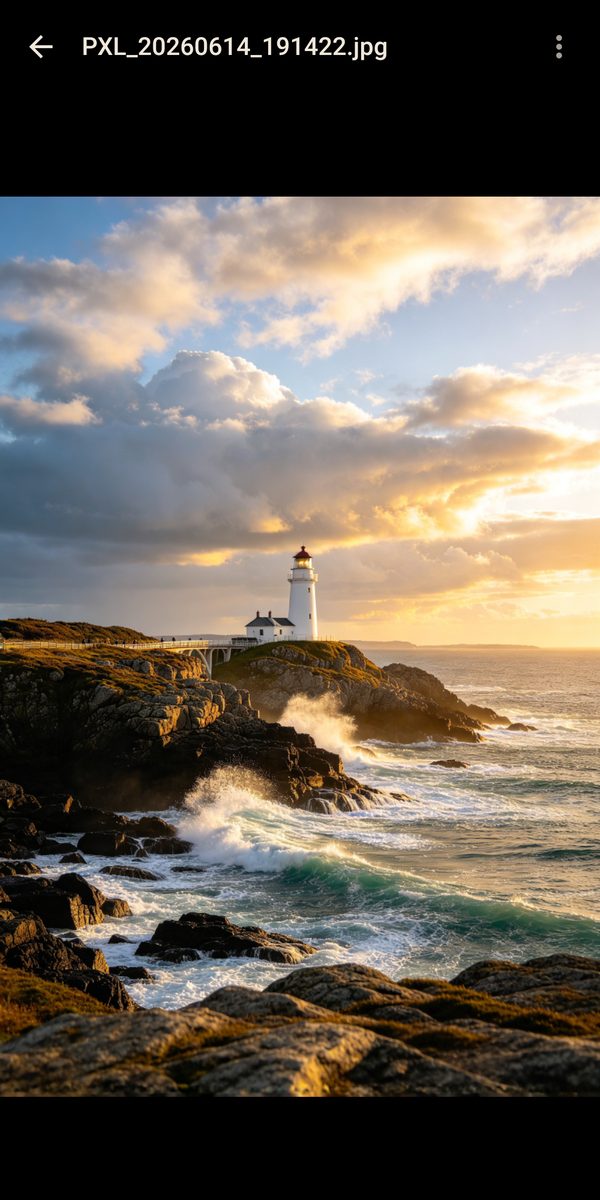
Real screens from the app. The photos in the vault are samples.
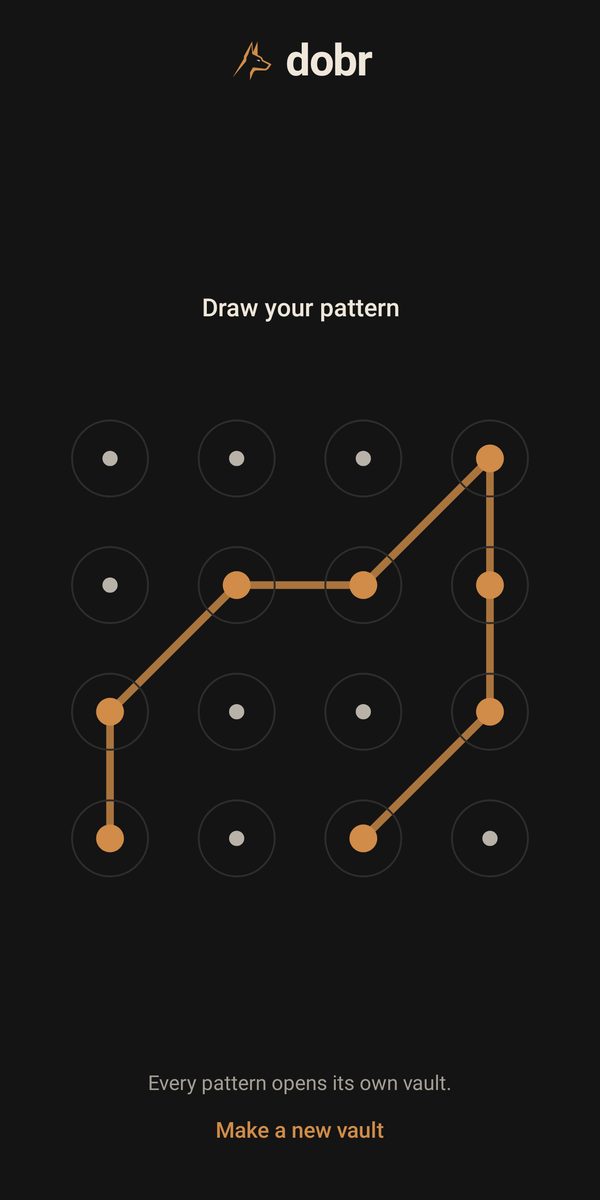
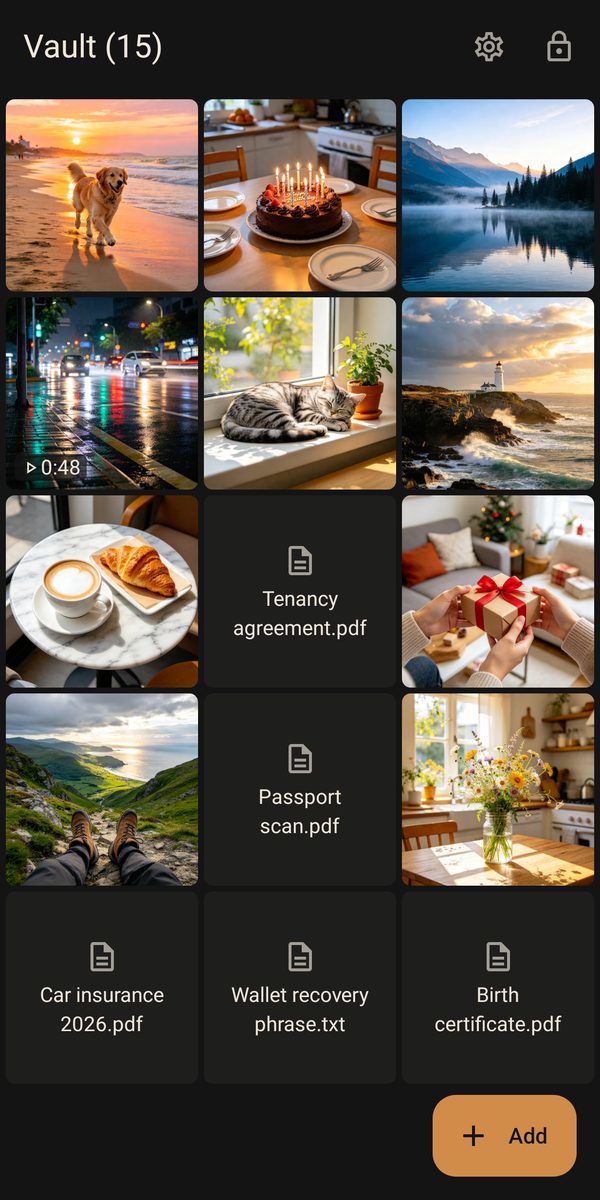
Every pattern opens its own vault
Dobr doesn't store a list of vaults. Your pattern is the address and the key. Draw one pattern for your real vault and another for a dull decoy with a few saved recipes and receipts. To add one, tap Make a new vault on the lock screen.
If someone makes you open the app, open the decoy. Nothing in the app shows how many other vaults exist, and each vault's free limit counts only its own items, so a near-empty decoy looks like the only one.
Guides
Plain answers to the questions people ask before they hide anything.
- How to hide photos on Android
Five ways to hide photos on an Android phone, from Locked Folder to Secure Folder and Private space, and what each one protects against.
- How to hide videos on Android
Hiding videos works like hiding photos, with three extra things to watch: file size, where your messaging apps save them, and how playback works.
- How to remove location from a photo before you send it
Most phone photos record exactly where they were taken. Here's how to stop that for new photos and strip it from the ones you already have.
- Where to keep photos of your passport and ID on your phone
A photo of your passport or driving licence in your camera roll is handy and risky. Here's how to keep the convenience and lose the risk.
- How to stop a folder's photos showing in your gallery
The .nomedia trick keeps a folder's photos out of gallery apps on Android. Here's how it works and why it isn't real privacy.
- What happens to hidden photos when you get a new phone
Locked Folder, Secure Folder, Private space and vault apps each handle a phone switch differently. Check before you wipe the old one.
Pricing
Every feature is in the free version. Paying lifts the 50 item limit on each vault.
| Free | Up to 50 photos, videos or files in each vault | $0 |
|---|---|---|
| Weekly | Unlimited items, cancel any time in Google Play | $1.99 |
| Yearly | Unlimited items | $19.99 |
| Lifetime | Unlimited items, pay once | $39.99 |
Prices are in US dollars. Google Play shows the price in your own currency before you pay.